
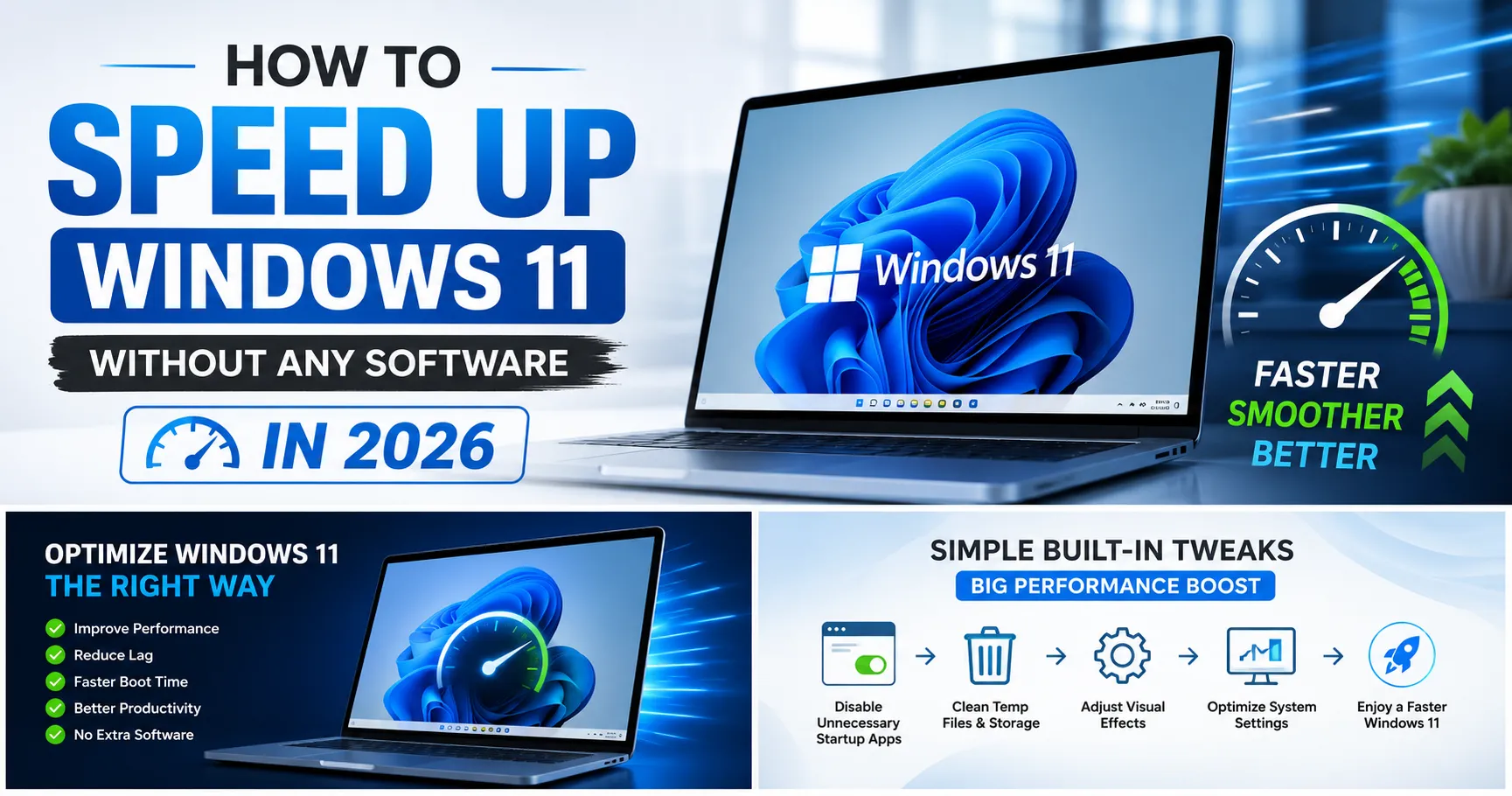
You’re not alone. In 2026, many users assume they need another “PC cleaner” or optimization app to restore performance. The reality is quite different. Most third-party speed-up tools do little more than automate settings that Windows already provides.
The good news is that learning how to speed up Windows 11 doesn’t require downloading anything. Microsoft has built powerful optimization features directly into the operating system, and a few smart adjustments can dramatically improve responsiveness, boot times, multitasking, and overall usability.
Whether you’re working remotely, managing cloud files, running AI-powered productivity tools, editing videos, or simply browsing the web, these built-in tweaks can help you reclaim lost performance without spending a penny.
In this guide, you’ll discover the most effective Windows 11 performance tips, understand what actually slows a PC down, and learn how to improve PC performance without software.
Table of Contents
Why Windows 11 Slows Down Over Time
Windows 11 is designed to adapt to modern workloads, including:
- AI productivity tools
- Cloud computing platforms
- Business SaaS applications
- Video conferencing software
- Browser-based business automation tools
- Cybersecurity and VPN services
As more applications run in the background, system resources become fragmented and overloaded.
Common causes include:
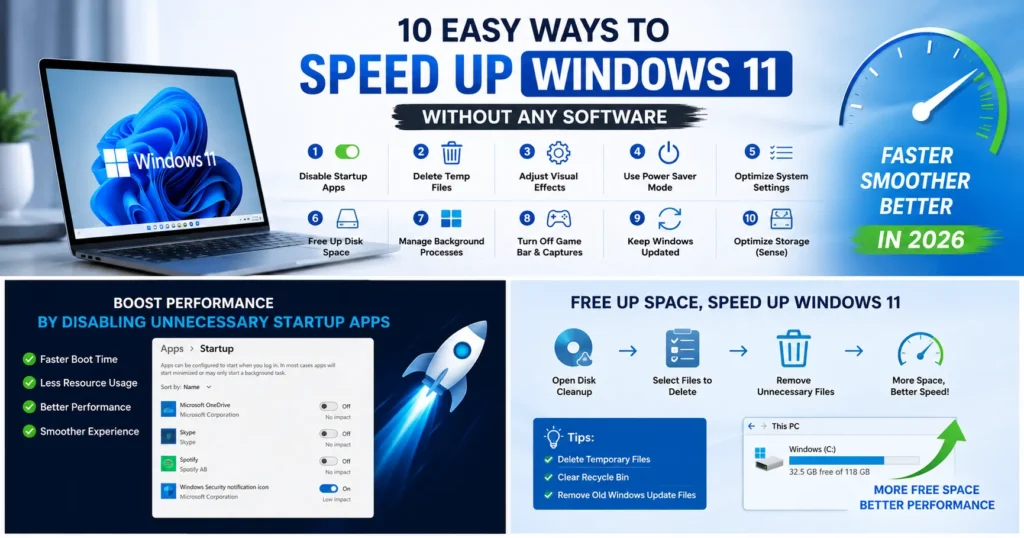
- Too many startup programs
- Full SSD storage
- Excessive cloud synchronization
- Background app activity
- Visual effects consuming resources
- Outdated drivers and system files
The key is identifying these bottlenecks and removing them using built-in Windows tools.
1. Check Startup Apps First
The Biggest Performance Killer
Many apps automatically launch when Windows starts.
To disable unnecessary startup programs:
- Press Ctrl + Shift + Esc
- Open Task Manager
- Select Startup Apps
- Disable apps you don’t need immediately
Examples include:
- Chat applications
- Cloud storage clients
- Gaming launchers
- Marketing software
- Business automation platforms
This single step can significantly reduce boot times.
Why It Works
Every startup app consumes:
- CPU cycles
- Memory
- Disk activity
Reducing startup load is one of the easiest ways to make Windows 11 faster.
2. Turn Off Visual Effects
Improve PC Performance Without Software
Windows 11 looks beautiful, but animations require resources.
To disable visual effects:
- Search Advanced System Settings
- Click Performance Settings
- Choose Adjust for best performance
Alternatively, disable only:
- Transparency effects
- Window animations
- Shadow effects
Best For
- Older laptops
- Budget desktops
- PCs with 8GB RAM or less
This is one of the most effective methods to fix slow Windows 11 systems.
3. Free Up Storage Space
Storage Directly Impacts Speed
When SSDs become nearly full, performance often drops.
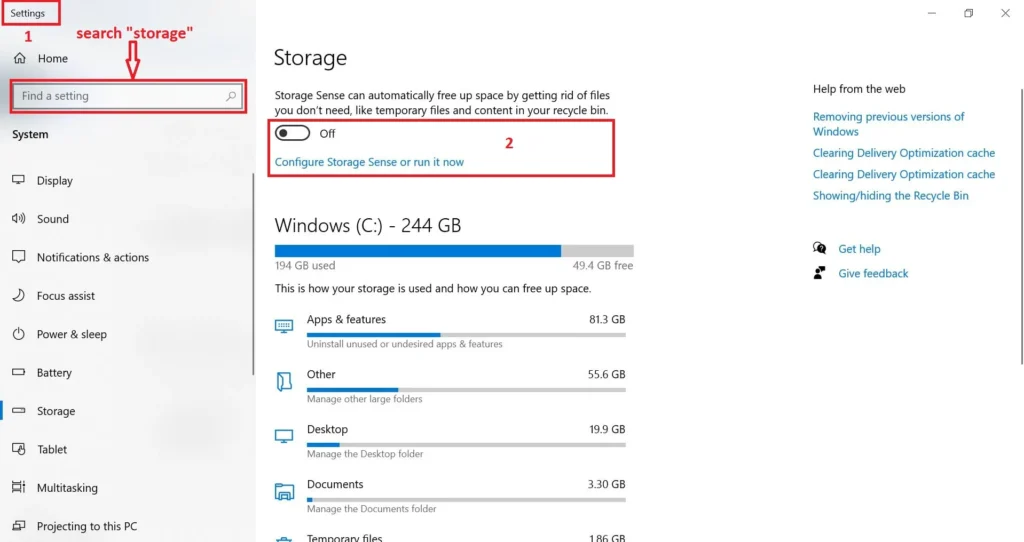
Open:
Settings → System → Storage
Enable:
- Storage Sense
- Automatic temporary file cleanup
- Recycle Bin management
Remove:
- Old downloads
- Duplicate files
- Unused applications
Recommended Free Space
| Drive Type | Recommended Free Space |
|---|---|
| SSD | 20–25% |
| NVMe SSD | 15–20% |
| HDD | 25–30% |
4. Optimize Power Settings
Many Windows PCs run in balanced mode even when plugged in.
To change:
- Open Control Panel
- Select Power Options
- Choose Best Performance
This allows:
- Faster CPU boosting
- Better multitasking
- Improved responsiveness
Particularly useful for users working with:
- Enterprise software solutions
- Cloud dashboards
- AI-powered productivity platforms
5. Pause Unnecessary Background Apps
Hidden Resource Consumers
Many applications continue running even when closed.
Navigate to:
Settings → Apps → Installed Apps
Review apps that constantly run in the background.
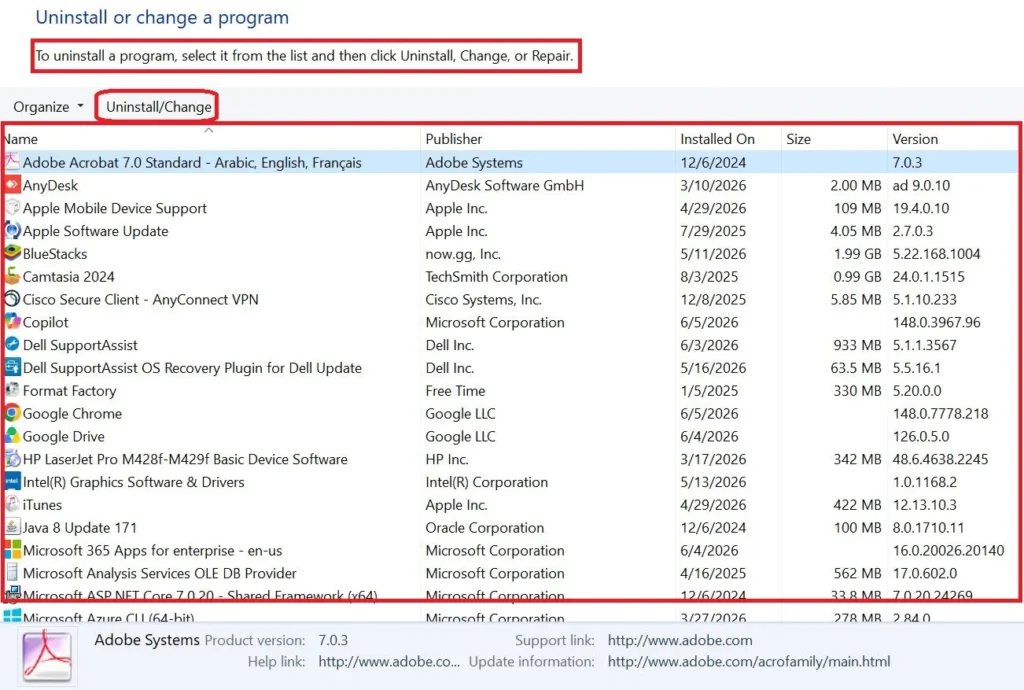
Examples:
- Messaging tools
- Cloud backup services
- File synchronization apps
Reducing background activity can noticeably improve PC performance without software.
6. Manage Cloud Synchronization Carefully
Cloud Services Can Slow Modern PCs
Cloud computing platforms continuously upload and download data.
This includes:
- OneDrive
- Google Drive
- Business backup systems
- Enterprise storage platforms
Large synchronization jobs can significantly slow systems.
What To Do
Pause syncing temporarily during:
- Gaming
- Video editing
- Large file transfers
- AI workloads
Modern businesses rely heavily on cloud services, but managing synchronization intelligently helps make Windows 11 faster.
7. Keep Windows Updated
Many people delay updates because they fear performance issues.
In reality, Microsoft regularly releases:
- Security improvements
- Driver optimizations
- Bug fixes
- Performance enhancements
Visit:
Settings → Windows Update
Check for updates regularly.
For official guidance, refer to Microsoft support documentation.
8. Disable Widgets You Never Use
Widgets constantly refresh information such as:
- News
- Weather
- Stocks
- Sports updates
If you never open them:
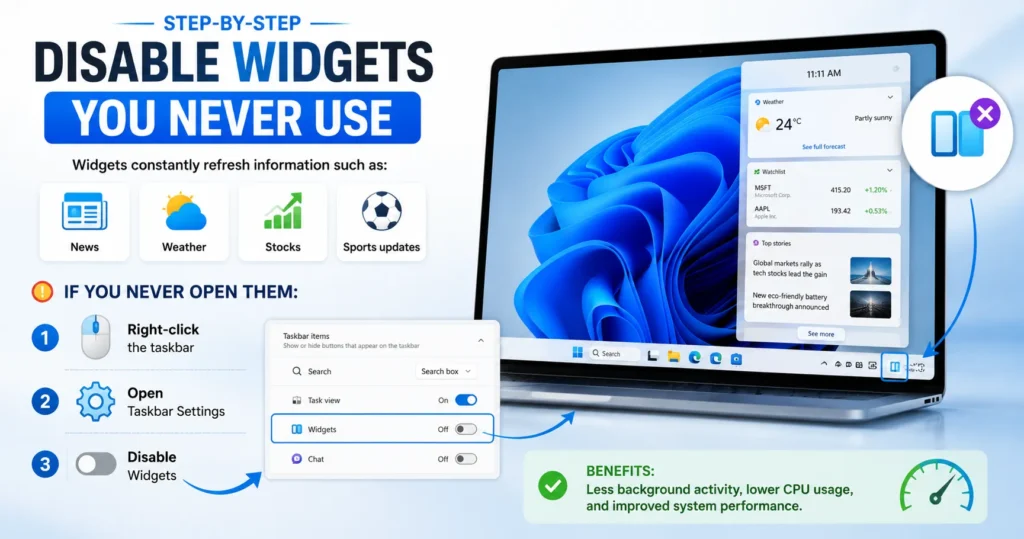
- Right-click taskbar
- Open Taskbar Settings
- Disable Widgets
Small change, but every background process matters.
9. Reduce Browser Resource Usage
Today’s browsers consume more RAM than ever.
Common performance drains include:
- Too many open tabs
- Extensions
- VPN add-ons
- Marketing tools
- AI assistants
Tips:
- Close unused tabs
- Remove unnecessary extensions
- Enable sleeping tabs
This often helps users who believe they need to fix slow Windows 11, when the browser is actually the culprit.
10. Restart Instead of Using Sleep Mode
Many users leave PCs in sleep mode for weeks.
Over time:
- Memory usage accumulates
- Temporary files increase
- Processes become unstable
A restart refreshes:
- RAM
- Services
- Drivers
- Network connections
For best performance, restart at least once every few days.
Windows 11 Performance Comparison
| Optimization | Difficulty | Performance Gain |
|---|---|---|
| Disable Startup Apps | Easy | High |
| Storage Cleanup | Easy | High |
| Disable Visual Effects | Easy | Medium |
| Power Plan Optimization | Easy | Medium |
| Pause Cloud Sync | Easy | Medium |
| Disable Widgets | Easy | Low |
| Restart Regularly | Very Easy | Medium |
| Browser Optimization | Easy | High |
2026 Performance Insights
Recent technology trends show that system slowdowns are increasingly caused by background digital services rather than hardware limitations.
Major contributors include:
AI Productivity Tools
Modern AI assistants continuously access system resources for automation and processing.
Cloud-Based Workflows
Cloud computing platforms now dominate both consumer and business environments.
Cybersecurity Suites
Advanced protection systems monitor files in real time, increasing resource consumption.
Business Automation Software
Automation software and SaaS platforms often run multiple background services.
The takeaway? A modern PC slowdown is usually a software behavior issue—not a hardware failure.
Expert Tips to Make Windows 11 Faster
Use SSD Storage
If you’re still using an HDD, upgrading to an SSD delivers the biggest performance improvement possible.
Limit Browser Extensions
Many extensions continue operating in the background.
Monitor Resource Usage
Use Task Manager regularly to identify resource-heavy apps.
Keep Drivers Updated
Updated drivers often improve performance and stability.
Avoid Registry Cleaners
Most registry-cleaning utilities provide little benefit and can occasionally cause system issues.
Common Mistakes That Make Windows 11 Slower
- Installing multiple “PC cleaner” apps
- Running too many antivirus tools simultaneously
- Filling SSD storage above 90%
- Ignoring Windows updates
- Keeping dozens of browser tabs open
- Leaving unnecessary cloud sync jobs running
- Never restarting the computer
Final Thoughts
If you’re searching for how to speed up Windows 11, the answer isn’t another optimization app.
In 2026, the biggest performance improvements come from smarter system management rather than third-party software. Startup control, storage optimization, cloud synchronization management, and power setting adjustments can transform a sluggish PC into a responsive machine.
As AI tools, cybersecurity platforms, cloud services, and business automation technologies continue to grow, maintaining a lean Windows environment will become even more important. The users who regularly manage their systems will enjoy faster performance, longer hardware life, and a smoother experience across work, gaming, and digital productivity tasks.
FAQs on
How do I speed up Windows 11 without installing software?
Disable startup apps, clean storage, reduce visual effects, optimize power settings, and manage background processes. These built-in features often provide significant improvements.
What is the fastest way to fix slow Windows 11?
The quickest solution is disabling unnecessary startup programs through Task Manager and freeing up storage space.
Can Windows 11 become slower over time?
Yes. Accumulated files, background services, cloud synchronization, and installed applications can gradually reduce performance.
Do registry cleaners speed up Windows 11?
In most cases, no. Modern Windows versions rarely benefit from registry-cleaning software.
How much free storage should Windows 11 have?
For best performance, keep at least 15–25% of SSD storage available.
Does cloud storage affect PC speed?
Yes. Continuous synchronization from cloud computing platforms can consume CPU, memory, disk, and network resources.
Can AI tools slow down Windows 11?
Some AI-powered applications use significant CPU and RAM resources, particularly when running background automation tasks.
Can a faster PC help online business monetization?
Absolutely. Faster systems improve productivity when managing websites, digital marketing campaigns, web hosting dashboards, SaaS tools, content creation, and online business monetization systems.

Israr Ahmed Technology educator and IT professional specializing in networking, cybersecurity, software solutions, and digital systems. Founder of DriveInTech, delivering practical tutorials, AI tools, SEO strategies, and real-world digital solutions.