
Introduction
A slow computer can turn even the simplest task into a frustrating experience. Whether you’re editing videos, managing an online business, attending virtual meetings, or simply browsing the web, waiting for apps to load is never productive.
Many people assume they need to buy a new computer when performance drops. In reality, that’s often not the case.
If you’re searching for how to speed up a slow PC, the good news is that modern systems can often regain most of their original performance with a few targeted fixes. In 2026, the causes of PC slowdowns have evolved. AI-powered applications, cloud synchronization tools, browser extensions, background services, and increasingly demanding software workloads all place greater pressure on system resources.
This guide explains the real reasons behind slow performance and shows exactly how to make your computer faster without wasting money on unnecessary upgrades.
Fix your laptop boot issue: How to Boot Your Laptop in Safe Mode: 4 Easy Steps to Fix Issues (2025)
Table of Contents
Why PCs Feel Slower in 2026
Modern computers are doing far more than they were just a few years ago.
Today’s systems routinely handle:
- AI assistants
- Cloud backups
- Video conferencing
- Browser-based productivity suites
- Cybersecurity monitoring
- SaaS business applications
- Digital marketing tools
- Automation software
Many users also run services from Google Drive, Microsoft OneDrive, Dropbox, OpenAI-powered tools, and enterprise cloud platforms simultaneously.
As a result, even relatively powerful computers can begin showing signs of sluggishness.
Why Is My Computer Running Slow?
The Short Answer
Most slow PCs suffer from software overload rather than hardware failure.
Common causes include:
Too Many Startup Programs
Every application competing for resources during boot increases startup times.
Examples include:
- Cloud sync clients
- Messaging apps
- VPN services
- AI productivity tools
- Gaming launchers
Storage Nearly Full
Windows performance drops significantly when SSDs approach maximum capacity.
Aim to keep at least:
- 20% free storage space
- 50GB+ available whenever possible
Excessive Browser Usage
Modern browsers can consume enormous amounts of memory.
A user with:
- 30 Chrome tabs
- Multiple extensions
- Streaming services
- AI chat tools
can easily use more RAM than professional editing software.
Malware and Unwanted Software
Hidden background processes remain one of the most common causes of performance loss.
Reliable cybersecurity solutions are essential in 2026.
How to Speed Up a Slow PC: Proven Fixes
1. Disable Unnecessary Startup Applications
Press:
Ctrl + Shift + Esc
Open Task Manager and review Startup Apps.
Disable anything non-essential.
Many users see startup times reduced by 30–60%.
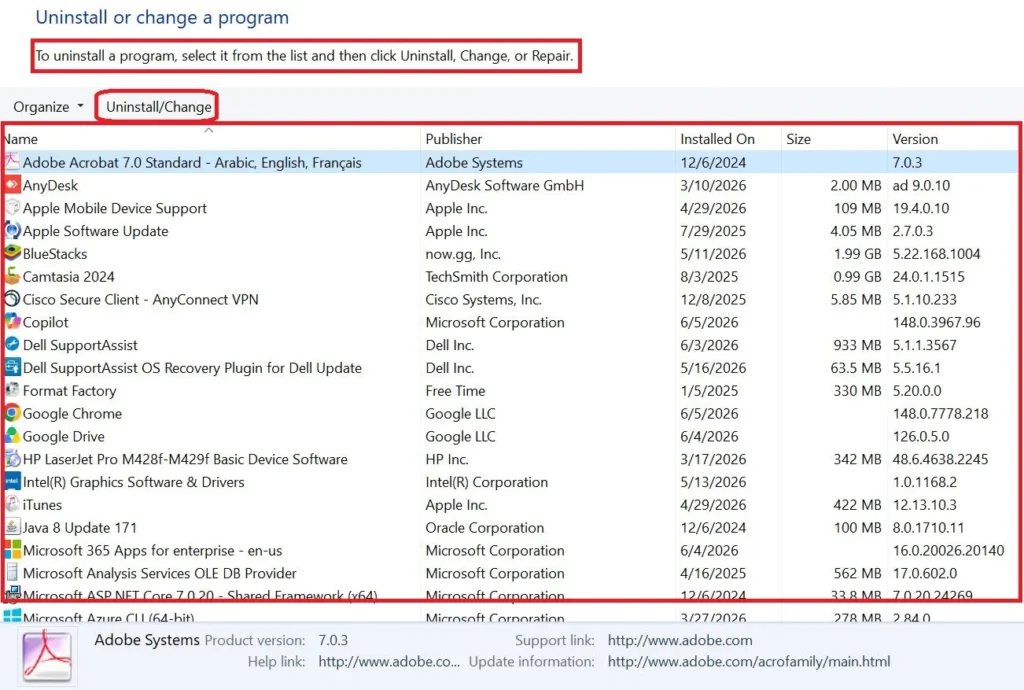
2. Remove Software You No Longer Use
Unused applications continue consuming:
- Disk space
- Updates
- Background services
- System resources
Review installed software every few months.
3. Clean Temporary Files
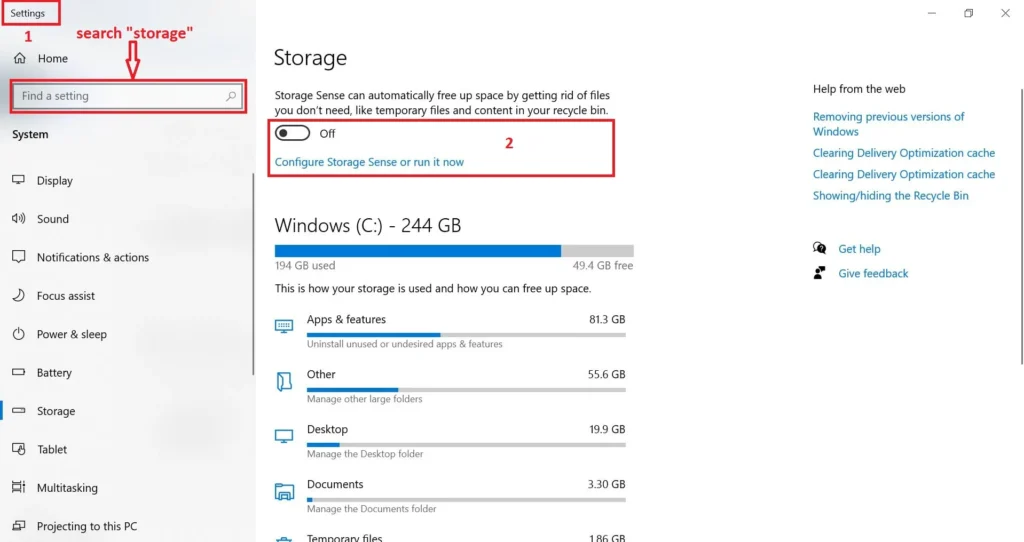
Open:
Settings → System → Storage
Enable Storage Sense.
This automatically removes:
- Temporary files
- Cache data
- Recycle Bin contents
4. Update Windows and Drivers
Many users experiencing Windows 11 performance issues are actually running outdated drivers.
Always update:
- Graphics drivers
- Network drivers
- Chipset drivers
- Windows updates
Performance improvements are frequently included in driver releases.
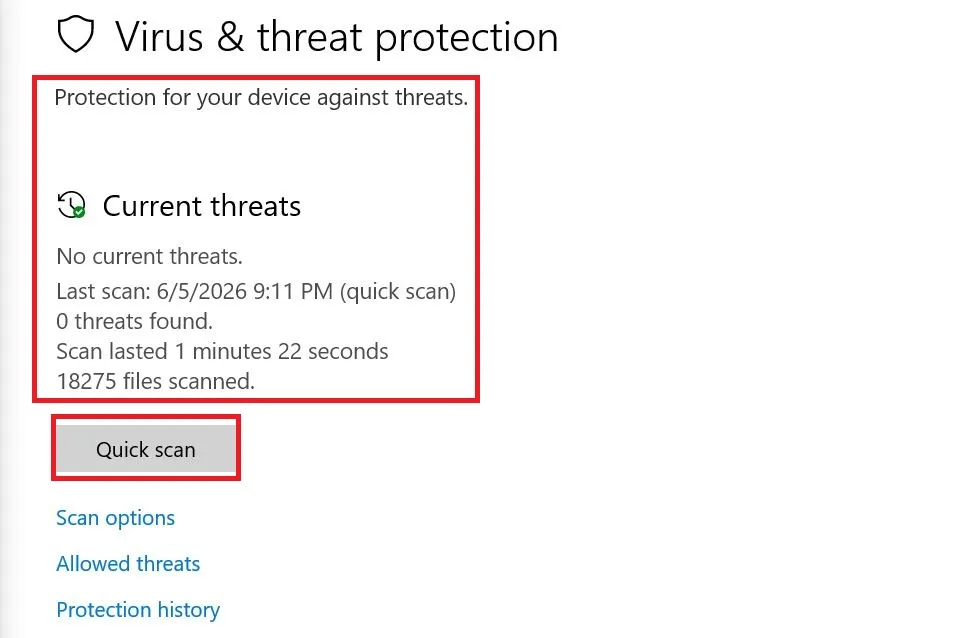
5. Scan for Malware
Run a complete security scan.
Trusted security platforms help identify:
- Adware
- Cryptominers
- Browser hijackers
- Malicious extensions
These threats often consume significant CPU resources.
Windows 11 Performance Issues Explained
Windows 11 has matured considerably, but some users still experience performance challenges.
Common issues include:
| Problem | Impact |
|---|---|
| Excessive widgets | Increased RAM usage |
| Background AI features | CPU consumption |
| Sync services | Network and storage activity |
| Visual effects | Reduced responsiveness |
| Legacy software conflicts | System instability |
Quick Fix
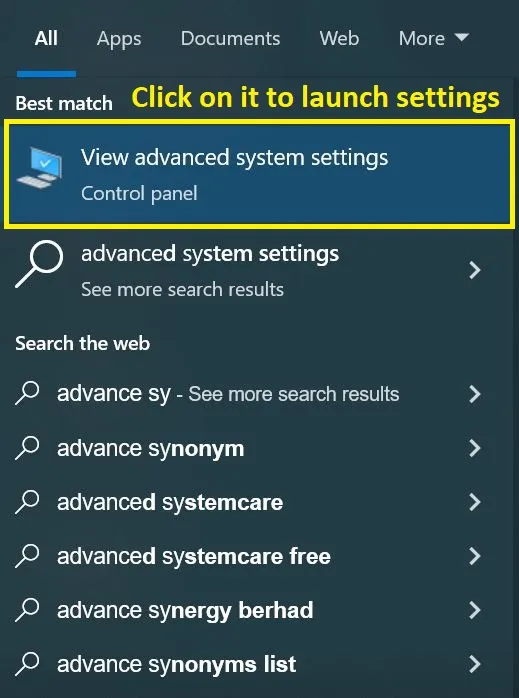
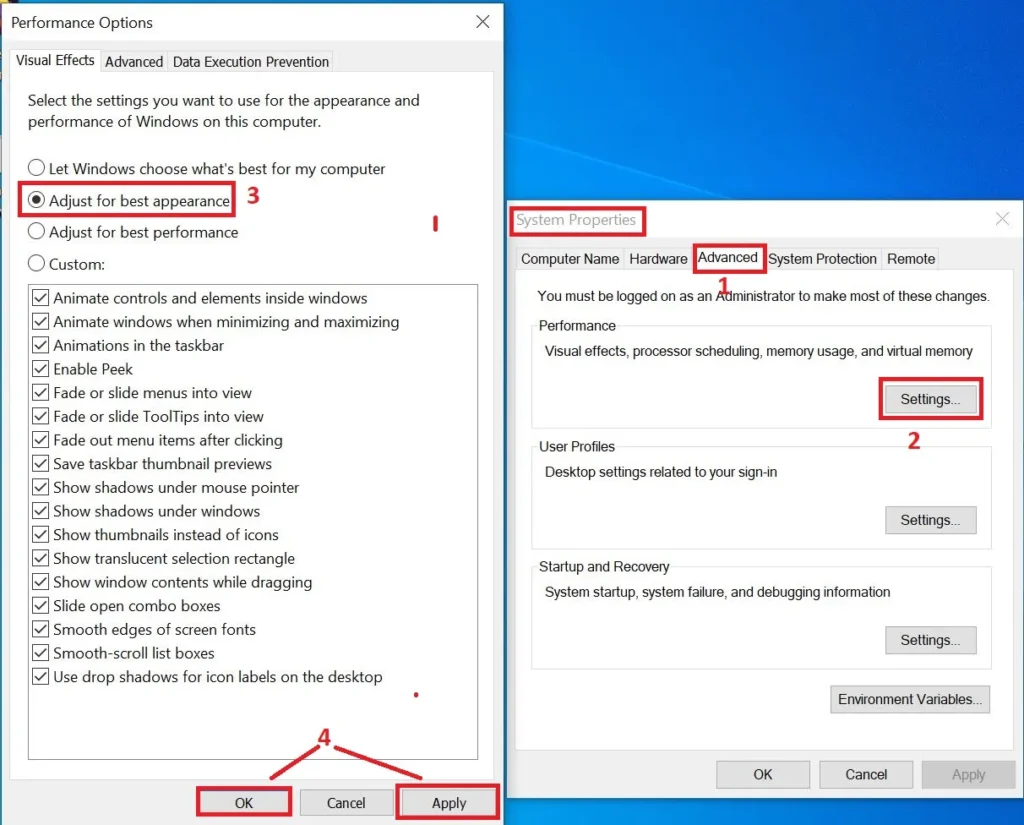
Disable unnecessary visual effects:
System Properties → Advanced → Performance Settings
Choose:
Adjust for Best Performance
This simple change often improves responsiveness on older systems.
The Biggest Performance Killers in 2026
AI Applications Running Constantly
AI assistants and automation tools are useful but resource-intensive.
Examples include:
- AI writing assistants
- AI meeting transcribers
- AI design platforms
- AI productivity suites
Close unused AI applications when not needed.
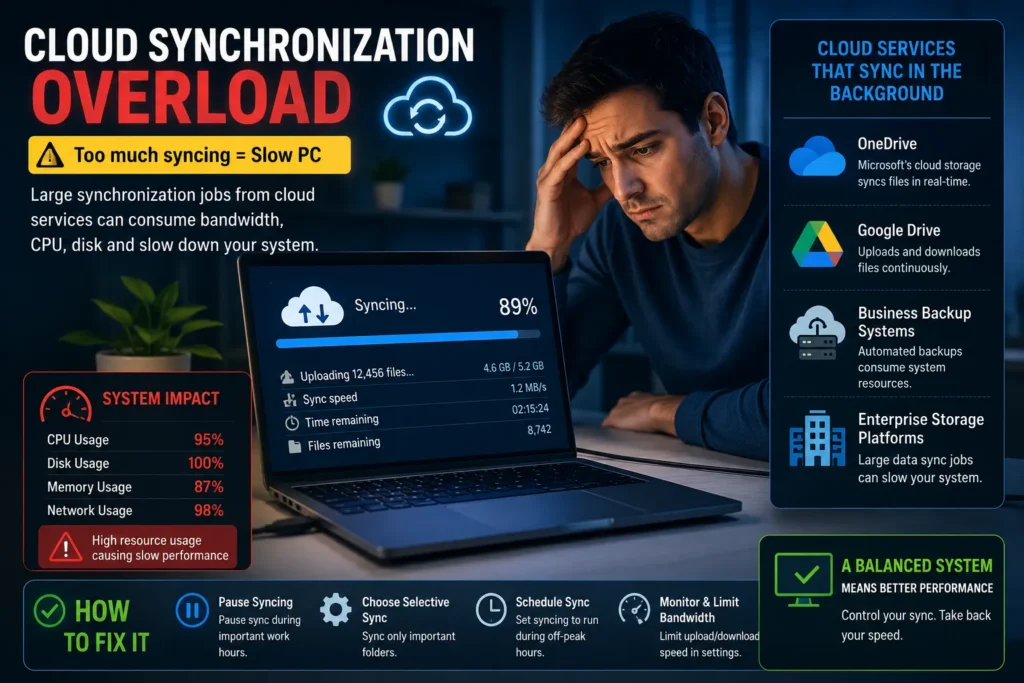
Cloud Synchronization Overload
Cloud computing platforms continuously upload and download data.
This includes:
- OneDrive
- Google Drive
- Business backup systems
- Enterprise storage platforms
Large synchronization jobs can significantly slow systems.
Browser Extension Bloat
Many users install dozens of extensions.
Each extension can:
- Use memory
- Track browsing activity
- Increase page load times
Audit extensions regularly.
PC Optimization Tips That Actually Work
Best Practices Checklist
- Restart weekly
- Keep storage below 80% utilization
- Update software regularly
- Use reputable cybersecurity tools
- Limit browser extensions
- Upgrade storage to SSD
- Monitor startup applications
- Remove unnecessary software
- Use cloud storage strategically
- Enable automatic maintenance
Hardware Upgrades Worth Considering
If software optimization isn’t enough, these upgrades provide the best return on investment.
| Upgrade | Performance Gain |
| SSD Upgrade | Very High |
| RAM Upgrade | High |
| New CPU | Medium |
| New GPU | Low for general use |
| New PC | Highest Cost |
Best Upgrade for Most Users
Moving from a traditional hard drive to an SSD remains the single biggest performance improvement available.
Even older computers often feel dramatically faster afterward.
Performance Impact Breakdown
Estimated improvement after optimization:
| Optimization Step | Expected Improvement |
| Startup cleanup | 15–40% |
| Storage cleanup | 10–20% |
| Malware removal | 20–50% |
| SSD upgrade | 50–300% |
| RAM upgrade | 20–100% |
| Driver updates | 5–15% |
Actual results vary based on hardware and workload.
Expert Tips for Maximum Speed
Use Lightweight Alternatives
Replace resource-heavy applications when possible.
Monitor Resource Usage
Task Manager quickly reveals:
- CPU bottlenecks
- Memory issues
- Disk activity spikes
Prioritize Security
A secure PC is often a faster PC.
Modern threats frequently operate in the background and consume system resources continuously.
Review Cloud Services
Businesses using web hosting services, SaaS tools for business growth, automation software, and cloud computing platforms should periodically audit active sync services.
Many hidden slowdowns originate from unnecessary background cloud activity.
Common Mistakes That Make PCs Slower
Avoid these common errors:
Installing “PC Booster” Software
Many optimization tools provide little benefit.
Some create additional performance problems.
Running Too Many Browser Tabs
Modern websites consume significant memory.
Ignoring Updates
Performance fixes are frequently delivered through software updates.
Allowing Storage to Fill Completely
Low free space remains one of the most overlooked causes of slow performance.
Using Multiple Antivirus Programs
Running multiple security suites simultaneously can reduce system performance.
Final Thoughts
The biggest misconception in 2026 is that a slow PC automatically means it’s time for a replacement.
In reality, most performance problems stem from software clutter, excessive background activity, storage limitations, or outdated maintenance habits.
By applying the fixes outlined above, many users can dramatically improve system responsiveness without purchasing new hardware.
As AI-powered applications, cloud services, cybersecurity tools, and digital business platforms continue expanding, proactive maintenance is becoming more important than ever. The computers that feel fastest in 2026 aren’t always the newest—they’re the ones that are properly optimized.
FAQs on How to Speed up a Slow PC
How do I speed up a slow PC quickly?
Disable startup apps, remove unused software, clean temporary files, update drivers, and scan for malware.
Why is my computer running slow even with good hardware?
Background applications, cloud synchronization, browser extensions, and malware are often responsible for performance issues.
What causes Windows 11 performance issues?
Common causes include outdated drivers, excessive startup programs, visual effects, and resource-heavy background services.
How can I make your computer faster without spending money?
Clean storage, disable unnecessary applications, update Windows, and optimize startup settings.
Is upgrading RAM or SSD better?
For most users, upgrading to an SSD delivers a larger performance boost than adding RAM.
Can AI software slow down a PC?
Yes. AI-powered productivity tools, automation software, and local AI models can significantly increase CPU and memory usage.
Can a slow PC affect online business productivity?
Absolutely. Slow systems reduce efficiency when using digital marketing platforms, cloud applications, enterprise software solutions, and online monetization systems.

Israr Ahmed Technology educator and IT professional specializing in networking, cybersecurity, software solutions, and digital systems. Founder of DriveInTech, delivering practical tutorials, AI tools, SEO strategies, and real-world digital solutions.